
Mastering the Loadboard
Learn how to search, filter, and quickly evaluate available freight on CargoVans.
The CargoVans Loadboard is where you search through available freight and identify opportunities that fit your vehicle, location, timing, and operating strategy. Because loads are displayed newest first, the top of the Loadboard is the natural place to begin your search.
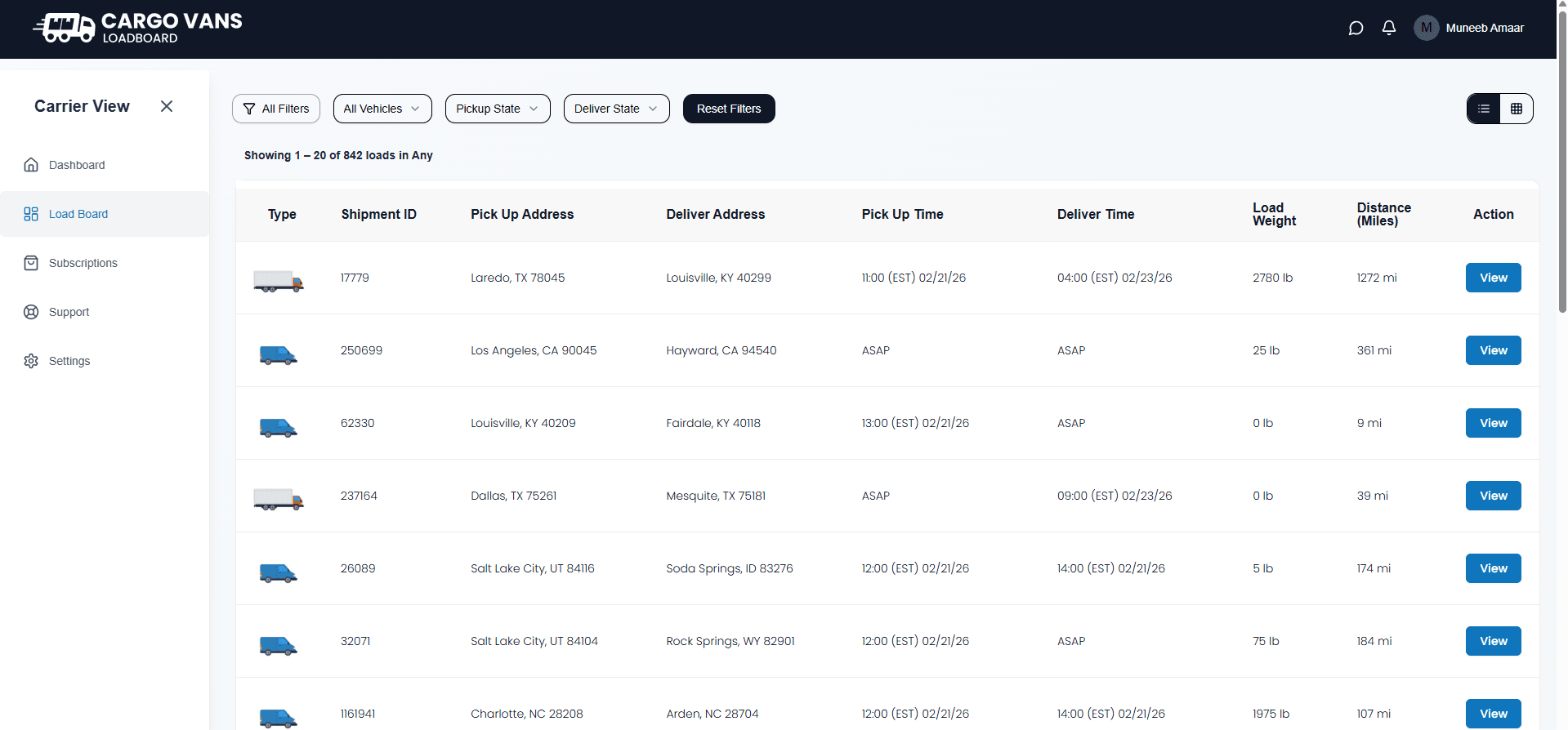
Start with the newest loads
CargoVans displays available loads with the newest opportunities first. This means you do not need to start at the end of the results and work backward. Begin at the top and work through the most recently posted opportunities before moving deeper into the list.
Use filters to narrow the search
The filter controls at the top of the Loadboard help you narrow the results before you begin reviewing individual loads. Filtering is especially useful when the board contains a large number of available opportunities.
- All Filters, access the available Loadboard filtering options.
- All Vehicles, choose the vehicle type relevant to your operation, including available vehicle categories such as vans, sprinter vans, box trucks, flatbeds, reefers, stepdecks, and others.
- Pickup State, limit results based on the state where the load originates.
- Deliver State, limit results based on the state where the load is going.
- Reset Filters, remove your current filtering selections and return to the broader results.
Pickup State and Deliver State can be used individually or together. Applying a state filter changes which loads are displayed while the results continue to follow the Loadboard's newest-first ordering.
Choose the view that works for you
On desktop, CargoVans provides two ways to view available loads: Table View and Card View. The information is the same, but the presentation is different. On mobile devices, loads are displayed in the card format.
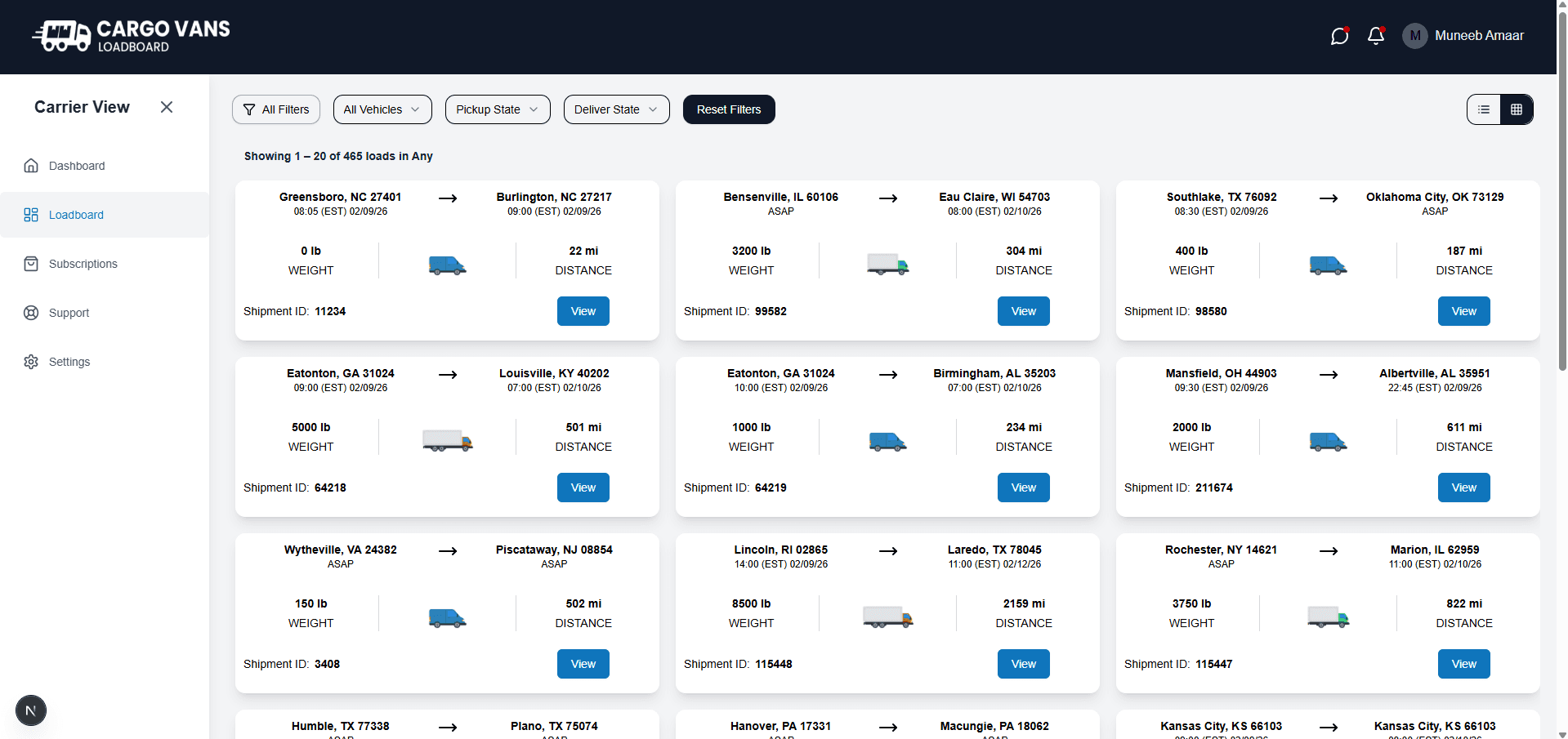
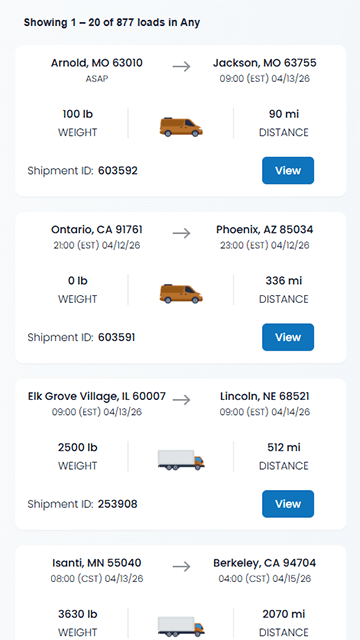
Table View
Table View is useful when you want to compare several opportunities quickly. Each row presents the load information in a consistent set of columns.
- Type, the vehicle or load type shown for the opportunity.
- Shipment ID, the identifier associated with the shipment.
- Pick Up Address, the location where the load needs to be picked up.
- Deliver Address, the destination where the load needs to be delivered.
- Pick Up Time, the scheduled pickup time, or ASAP when applicable.
- Deliver Time, the scheduled delivery time, or ASAP when applicable.
- Load Weight, the listed shipment weight.
- Distance (Miles), the listed distance for the trip.
- Action, select View to open the load and see its full details.
Card View
Card View organizes each opportunity into a compact load card. The pickup and delivery locations are shown across the top, followed by the applicable timing, weight, vehicle type, distance, shipment ID, and View action.
The card format is particularly useful on smaller screens because the information remains readable without requiring a wide table. On mobile, this is the standard way available loads are presented.
Understand the information before opening a load
You can learn a lot about an opportunity directly from the Loadboard before opening its full details. Start by looking at the pickup and delivery locations, then consider the timing, vehicle type, weight, and distance.
- Check where the load starts and where it ends.
- Check the pickup and delivery timing.
- Confirm that the vehicle type fits your equipment.
- Review the shipment weight.
- Look at the listed trip distance.
- If the opportunity looks suitable, select View to investigate the full load details.
20 or 50 loads per page
CargoVans lets you choose how many loads are displayed on each page: 20 or 50. Choose 20 when you prefer a shorter list that is easier to work through. Choose 50 when you want to scan a larger set of results before moving to another page.
Use the result count to understand your search
The Loadboard shows how many results are currently available and which portion of those results you are viewing. For example, “Showing 1-20 of 842 loads” means the current page contains loads 1 through 20 from a total of 842 matching results.
Move through additional results with pagination
When more loads match your search than can fit on the current page, use the pagination controls at the bottom of the Loadboard to move through the remaining results. Remember that the results continue to be presented newest first, so starting with the first page keeps you closest to the most recent opportunities.
A practical Loadboard workflow
- Start at the top of the Loadboard where the newest loads appear.
- Choose the vehicle type that matches your equipment.
- Use Pickup State and Deliver State when you want to narrow the search geographically.
- Scan the pickup, delivery, timing, weight, and distance information.
- Open promising opportunities with View to inspect the complete load.
- Continue through the results only after you've dealt with the opportunities that fit your current operation.
What comes next
Knowing how to operate the Loadboard is only the first step. The next question is how quickly you should act on a load. CargoVans focuses on recent freight, so understanding load freshness is an important part of working the board effectively.